
Flushing simulation
The Flushing simulation window displays the overview of the flushing simulation.

-
Flow paths
All flow paths with flush valves, sanitary flushes and flush-relevant consumers are displayed in the Flow paths line. Double-click on the relevant flow path to open it and display the volume flow and flow pressure. An open flow path is represented by a small tap valve.
-
Terminal valves
This line shows the valves via which the flush volume is discharged.
-
Full flow shut-off valves
If several flow paths are flushed via just one terminal valve, each flow path must be equipped with an additional full-flow shut-off valve. These shut-off valves are shown in the full-flow shut-off valves line.
-
Flow splitter
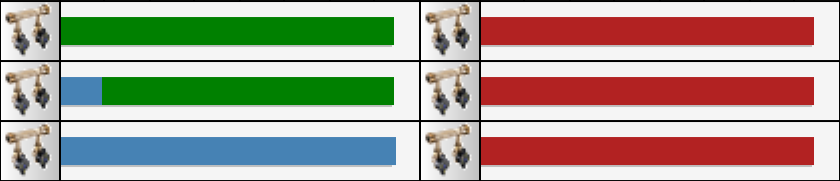
All flow splitters assigned to the corresponding flow path are shown in the flow splitter line. The bars behind the flow splitters indicate the volume of the connected ring main in litres. During flushing, the progress is indicated by the change in colour of the respective bars. A red-coloured area has not yet been flushed. The pipe contents in a green area have already been replaced and the pipe contents of a blue area have already been supplied with fresh water.
Note:
If a sign  appears somewhere in the Flushing simulation window after flushing, a message is displayed for the selected object in the Messages window.
appears somewhere in the Flushing simulation window after flushing, a message is displayed for the selected object in the Messages window. Double-click on the flow path in the Flushing simulation window to open the Flow splitter dialogue if you have installed a flow splitter in the hot water pipe.

The results of a flush can be found in the Flush log window.