
Floor plan
The settings defined in the Floor plan area in the Project and application settings dialogue only apply to drawings that are defined as floor plans.
| Function | Explanation of the function | ||||
|---|---|---|---|---|---|
| Activates PICKADD | If the checkbox is activated, the PICKADD variable is switched on. | ||||
| Crosshair over entire screen | If the checkbox is activated, the crosshairs are displayed on the entire drawing area. | ||||
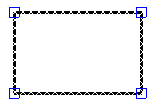
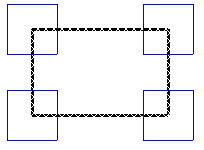
| Grip size | The grip size specifies the size of the grip points in pixels.
|
||||
| Show line thicknesses | If the checkbox is activated, the LST variable is switched on. | ||||
| Show line types | If the checkbox is activated, the LTYP variable is switched on. | ||||
| Object snap | If the checkbox is activated, the OFANG variable is switched on. | ||||
| Orthogonal drawing | If the checkbox is activated, the variable ORTHO is used. | ||||
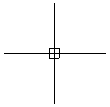
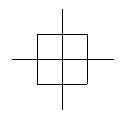
| PickBox size | The PickBox size specifies the size of the selection area on the crosshairs in pixels.
|
||||
| Grid | If the checkbox is activated, the RASTER variable is switched on. | ||||
| Grid spacing | Defines the grid spacing. This value can be adjusted by entering it in the text field. | ||||
| Grid snap | If the checkbox is activated, the variable FANG is switched on. |
| Function | Explanation of the function | ||||
|---|---|---|---|---|---|
| Assumed intersection | If the checkbox is activated, the object snap assumed intersection point is switched on. | ||||
| Base point | If the checkbox is activated, the object snap base/insertion point is switched on. | ||||
| End point | If the checkbox is activated, the object snap end point is switched on. | ||||
| Perpendicular | If the checkbox is activated, the perpendicular object snap is switched on. | ||||
| Centre point | If the checkbox is activated, the centre point object snap is activated. | ||||
| Next | If the checkbox is activated, the Next object snap is switched on. | ||||
| Object snap colour | The colour of the object snap points is defined by selecting the object snap colour from the drop-down colour menu.
|
||||
| OsnapModePreserve | If the checkbox is activated, the set snap that is set within a command remains switched on even after the end of the command. | ||||
| Point | If the checkbox is activated, the object snap point is switched on. | ||||
| Quadrant | If the checkbox is activated, the object snap quadrant is switched on. | ||||
| Intersection | If the checkbox is activated, the object snap intersection is switched on. | ||||
| Tangent | If the checkbox is activated, the object snap tangent is switched on. | ||||
| Centre | If the checkbox is activated, the centre object snap is activated. |
| Function | Explanation of the function |
|---|---|
| Chamfer distance | The chamfer distance defines the standard distance used for the Chamfer command. 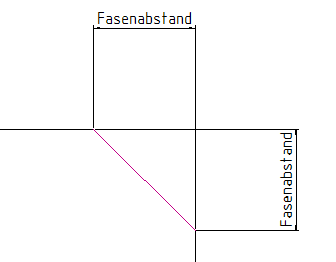 |
| Mouse wheel zoom factor | The zoom factor specifies the degree of magnification used for zooming with the mouse wheel. If the zoom factor is negative, the function is reversed and the mouse wheel is used to zoom out instead of in. Note: If the value 1.0 is used, the function is deactivated. |
| Function | Explanation of the function |
|---|---|
| Background colour | The background colour of the drawing surface is defined by selecting the background colour from the drop-down colour menu. |
| Grid colour | The colour of the drawing grid is defined by selecting the grid colour from the drop-down colour menu. |