Closed areas or selected objects are filled with a hatch pattern, an area fill or a gradation fill
Button: 
Command name: _hatch
-
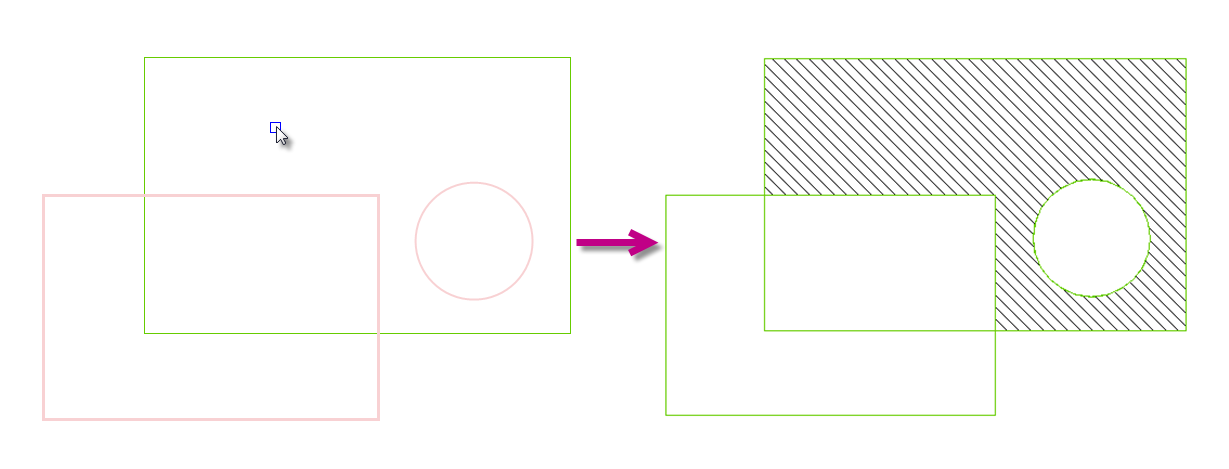
In the Hatching and gradation dialogue, click Select points and select one or more points in the areas to be filled. Confirm the selection by clicking with the right mouse button or by pressing the Enter key.
-
In the Hatching and shading dialogue box, click on Select perimeter and click on the boundaries of the areas that extend into the hatched area but are not to be filled. Confirm the selection by clicking with the right mouse button or by pressing the Enter key.
-
Then make the desired settings for the display of the hatching or filling in the Hatching and gradation dialogue.
Note: You can check your settings by clicking on Preview to display a preview.
-
Click OK to apply the settings.
|
|
|
Internal point and hatch outline selected
|
Result
|
