
Display masses
The masses with the respective prices for your project are displayed in a structured view. Various functions are available within the display.
- Click on a line to highlight it in orange and mark the corresponding object in the CAD window. Product information with item description and long text is also displayed.
- The columns Manual quantity and Quantity % can be edited. The values entered are displayed in blue.
Manual quantity:
In this column, you can add quantities to the determined quantities by entering a positive numerical value. The quantity is reduced by entering negative numerical values.Quantity %:
In this column, you can assign a percentage quantity surcharge. You can also reduce quantities here by entering negative percentages.
- The column EP € (unit price) can be edited for neutral quantities.
Note:
The price entered here also applies to other drawings in the project.
Tip:
If you also want the price changes to be available in subsequent projects, export the price file with the changed prices and import the saved price file into each new project in which you require the edited prices.
-
Right-click in the display area to access further sub-options.
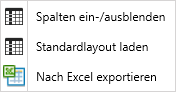
Show/hide columns: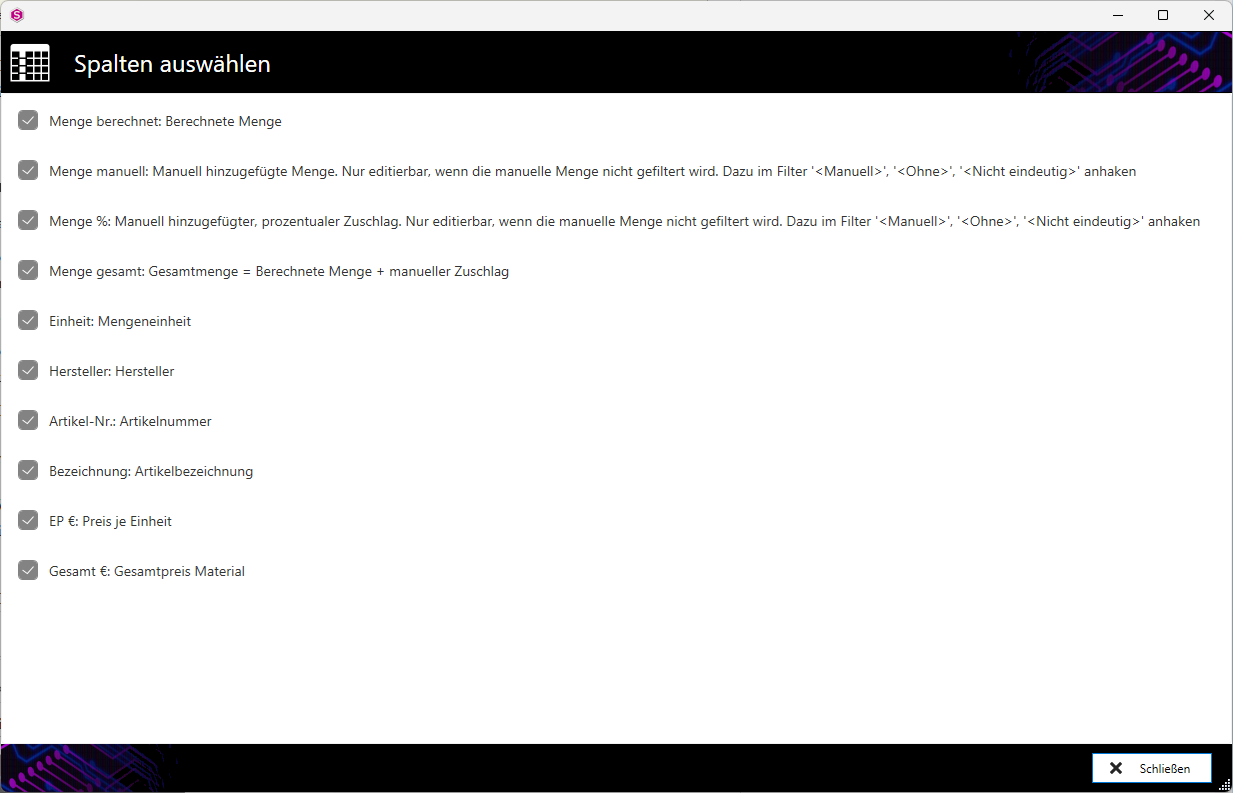
The option to show or hide columns can be activated or deactivated.Load standard layout:
If you select this option, your view in the material editor is reset to the delivery status.
Export to Excel:After selecting the save location in Save as, your masses will be saved in an Excel file in xlsx format.
You can find more information on our YouTube channel.
