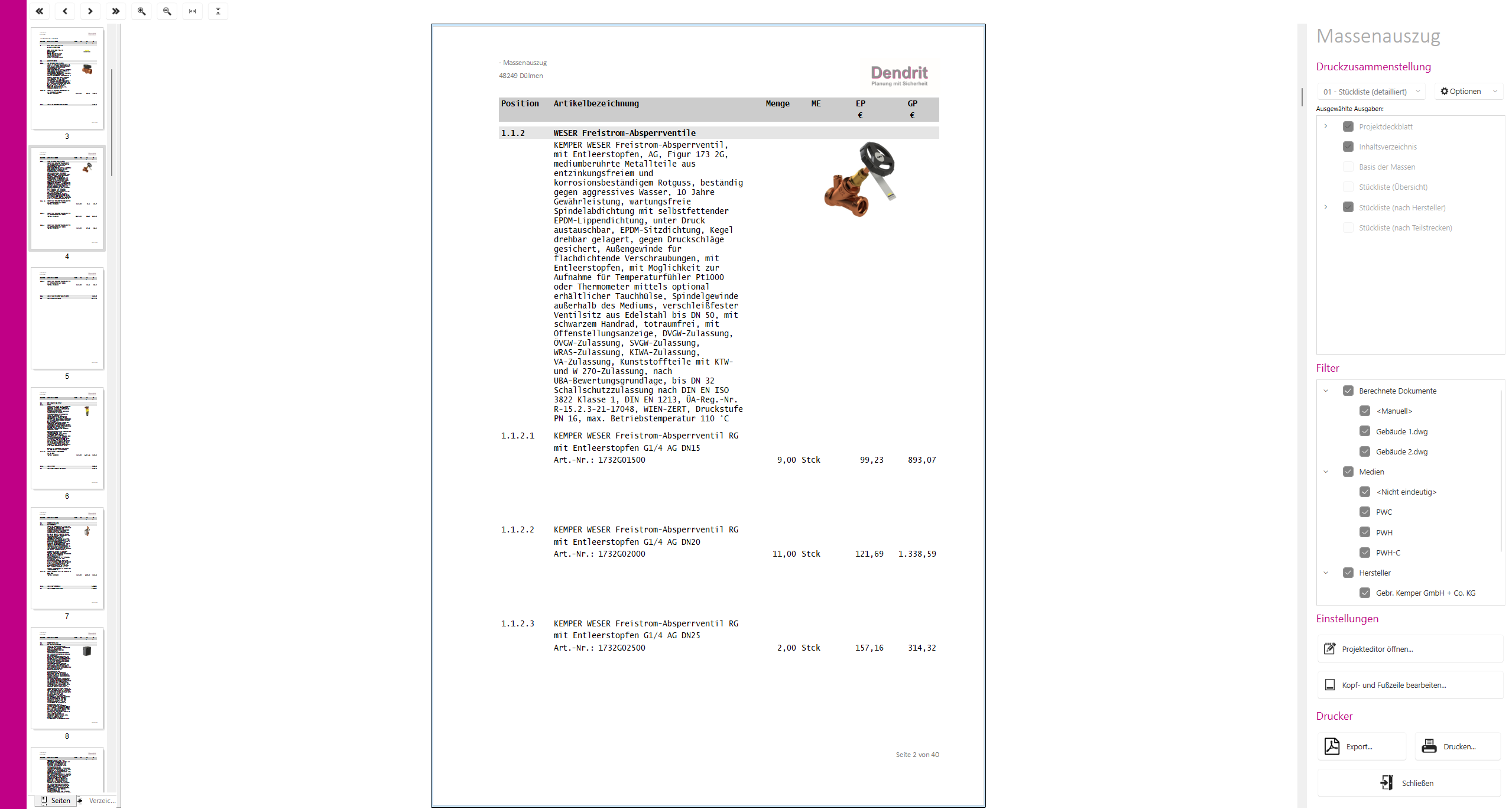
- On the far left is a button in the form of an arrow. Click on the arrow to exit the calculation output.
|

|
The navigation buttons are displayed in the top right-hand area of the calculation output.- The
 button takes you to the first page of the calculation output. button takes you to the first page of the calculation output. - The
 button takes you back one page from your current page of the calculation output. button takes you back one page from your current page of the calculation output. - The
 button takes you one page forwards from your current page of the calculation output. button takes you one page forwards from your current page of the calculation output. - Use the
 button to enlarge the display of the detailed view in the calculation output. button to enlarge the display of the detailed view in the calculation output. - Use the
 button to reduce the display of the detailed view in the calculation output. button to reduce the display of the detailed view in the calculation output. - The
 button displays the detailed view of the calculation output in the maximum available width. button displays the detailed view of the calculation output in the maximum available width. - The
 button displays the detailed view of the calculation output in the maximum available height. button displays the detailed view of the calculation output in the maximum available height.
|

|
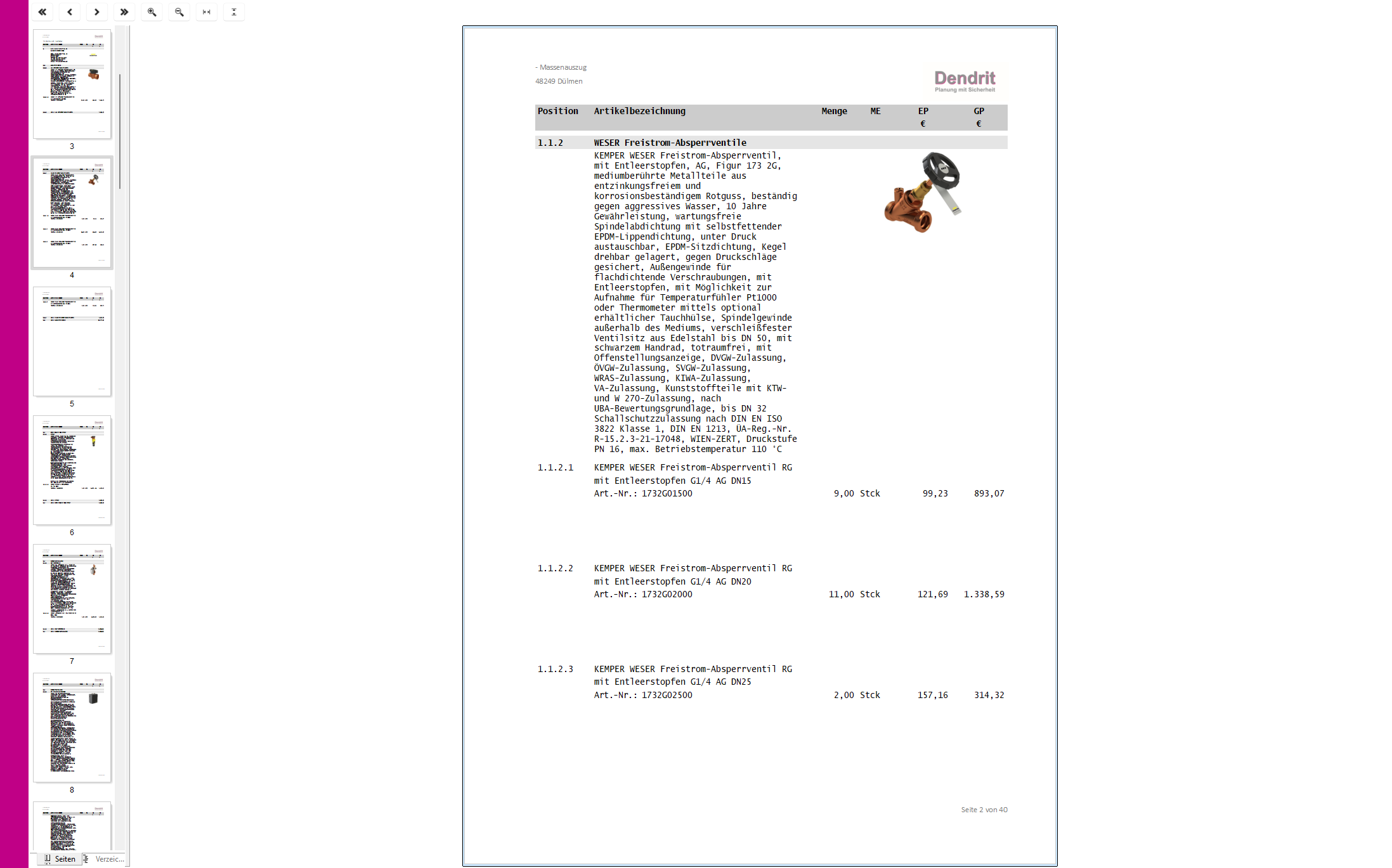
- By clicking on a page thumbnail, the clicked page is displayed in the detailed view.
- In the centre of the screen is the detailed view with a live preview of the calculation output. You can navigate in the preview using the buttons at the top. Alternatively, use the mouse to display the desired page.
- You can also adjust the zoom factor of the preview using the buttons at the top or set a zoom factor by holding down the Ctrl key and turning the mouse wheel.
|
|
The preview view button is displayed in the bottom left-hand area of the calculation output. - The
 button displays the preview of the calculation output with page thumbnails. button displays the preview of the calculation output with page thumbnails. - The
 button displays the preview of the calculation output with a table of contents for navigation. button displays the preview of the calculation output with a table of contents for navigation.
|

|
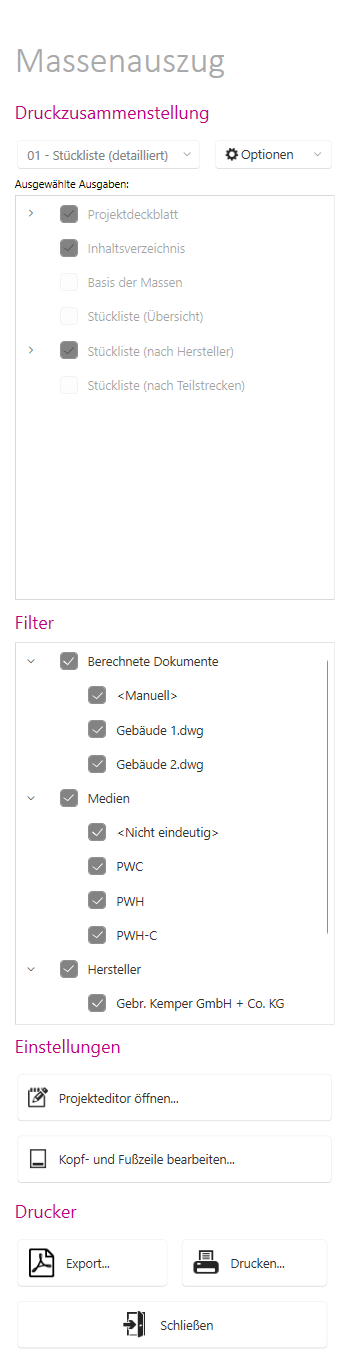
- The right-hand area of the calculation output contains the settings for the print composition, filters (except in the heat load report), settings for the project cover sheet as well as the header and footer and the print options.
|
|