
Edit and set value
Several options are available for setting and editing your property values.
- If you enter a value in the input field, the value you enter will take precedence and will not be overwritten by global project settings. Your value is now fixed. If you want to set a value that is already displayed, click in the checkbox to the right of the input field. Click on Set value to set the value.
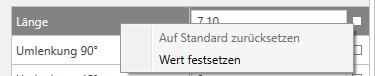
-
Use the ... button takes you to further setting options.

- The dark blue checkbox indicates that you have set your displayed value. This means that the value you have entered has priority and will not be overwritten. Adjustments in the global settings do not result in any changes to the value when the values are set.

- If you have set a value, you can undo the setting with Reset to default. The default value is then set again.

- The light blue checkbox indicates that your selection contains set and unset values.
You can find more information on our YouTube channel.
