Using the functions within the search dialogue, sections or components can be quickly filtered out and then edited. The search allows you to filter according to your selection for all property values from the section properties or component properties.
-
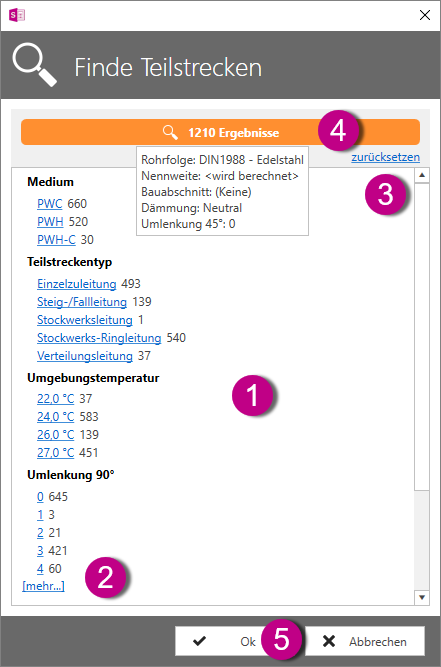
The list of search results is broken down to a few results by selecting properties that the objects you are looking for should have and that serve as filters. You can select several property values in succession.
The selection of objects in the drawing is adjusted directly according to your search parameters and highlighted in colour. This allows you to track your results in parallel with the search in the drawing.
Tip: You can set the zoom behaviour in the drawing via the drop-down menu in the Building Services window under View.
-
Click on [more...] to display further properties. Click [less...] to return to the previous view.
-
You can reset your search parameters via Reset.
-
If you move the mouse over the search results, a help text with the common values and the number of objects found in the search result is displayed.
-
Click Ok to exit the search dialogue and the search results are displayed. Clicking Cancel closes the dialogue and restores the selection made before opening the dialogue.
Further information can be found on our YouTube channel.  You can access the video here
