
Moving windows
The windows of the user interface can be moved and docked to any side of the user interface.
As soon as one of the windows is fixed to the title bar with the left mouse button pressed and dragged, the following buttons appear in the centre of the screen or at the respective edges:
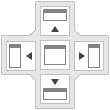

If you want to move a window, drag the window in the desired direction so that the desired button (direction arrow) is above the window and then click on the arrow to arrange the window accordingly.
The button in the centre  allows you to move several windows on top of each other. For example, if two windows are arranged next to each other, drag the windows on top of each other so that the title bar of one window is above the button. When you release the mouse button, both windows are displayed on top of each other. You can switch between the individual windows using the tabs (title of the respective window) at the bottom.
You can also drag the windows out of the user interface of CALHYDRA to display them anywhere next to the programme or on a second screen. It can be useful to swap out windows, e.g. to enlarge the drawing area.